
Move from Buzzsprout to Podhome in one afternoon
Moving a podcast from Buzzsprout is an import, then a redirect you set at Buzzsprout. Podhome copies the feed. Buzzsprout keeps its copy. Listeners stay on the Buzzsprout feed until that redirect is in place, so you can check every episode before anyone follows you.
The short version of those steps is Move from Buzzsprout. The click-by-click import for every host is Move your podcast to Podhome. This page is the afternoon you actually spend, and why people look at Podhome as a Buzzsprout alternative when the show outgrows a fixed upload allowance.
What you are walking away from
Buzzsprout is a clear host for getting a show online. The bill changes with upload hours, the number of shows, and optional AI add-ons. As of October 2026, the prices on Buzzsprout's own help pages look like this:
- The free plan includes 2 upload hours a month, and hosts each episode for 90 days. An Archive plan at $5 a month keeps a show online without new uploads.
- The entry paid Audio plan is $18 a month, or $180 a year, for one podcast and a fixed upload allowance (72 hours on the annual plan). Hours past the allowance are billed. On the $18 plan, extra time is $4 an hour.
- Plans for more shows share one pool of hours. Buzzsprout's annual help lists $360 a year for up to 5 audio podcasts and $780 a year for up to 10.
- Transcripts are included on current paid plans. Cohost AI and Magic Mastering are paid add-ons. On the $180 annual Audio plan, Buzzsprout lists each add-on at $60 a year.
Podhome is one plan: $15.99 a month or $185 a year, for unlimited shows, episodes, downloads, teammates, and Podhome AI. There is no free tier. A new account can try that same plan for 30 days. The yearly Buzzsprout Audio card ($180) can sit close to Podhome's $185, with a one-show hour cap and AI add-ons on top. The Podhome vs Buzzsprout page has the full table, with the date those prices were checked. The cost calculator runs the same prices against a show you describe. Re-check Buzzsprout's pricing page before you switch. A few older help pages still show earlier prices.
The afternoon, in order
1. Start the trial and import
- Sign up. The trial is 30 days of the $15.99 plan. Monthly and yearly are two ways to pay for that plan after the trial.
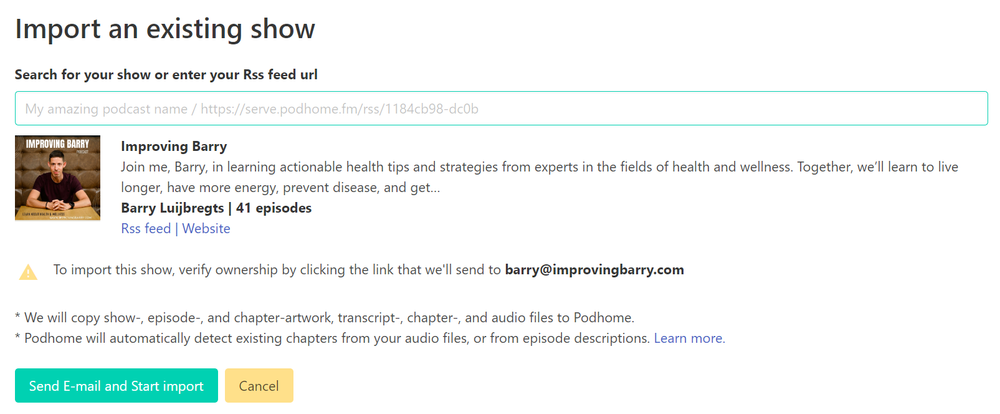
- Choose Import an existing show. Search the podcast name, or paste the Buzzsprout RSS feed.
- If the feed is locked, unlock it at Buzzsprout first. Podhome can only copy what the feed exposes. If the feed contains an email address, Podhome sends a message to confirm you own the show.
- Select the show and start the import. Podhome emails you from support@podhome.fm when it finishes. A long catalog takes longer than a short one. You can leave it running.
Import copies audio, artwork, and Podcasting 2.0 data that is in the feed, and it keeps existing show and episode GUIDs when they are present. It also picks up chapters embedded in the audio or written in show notes, such as “(00:00) - Introduction”. Podhome does not delete anything at Buzzsprout, and listeners do not move during this step.
2. Check the copy
Open the episodes and the show settings. Confirm titles, dates, artwork, and descriptions. This is the useful part of the afternoon: the Buzzsprout feed is still the one apps are using, so a correction here is private.
Download statistics do not come across. Stats stored at a previous host do not move a show in the charts. Podhome analytics start with plays of the Podhome media.
3. Redirect at Buzzsprout
When the copy looks right, point Buzzsprout at the new feed. Buzzsprout's transfer-away guide is where you set that redirect.
- Copy the Podhome RSS URL from the dashboard or the Distribution page. It looks like https://serve.podhome.fm/rss/ followed by your show id.
- Paste that URL into the redirect setting at Buzzsprout.
- Optional: in Apple Podcasts Connect, refresh the show. A small edit to the description can prompt directories to fetch again.
Apps and directories then follow the new feed. Listeners do not need a new subscription. From here, new episodes and edits belong in Podhome.
4. Leave the Buzzsprout account in place for about two weeks
Directories need time to follow a redirect. Wait about two weeks before you cancel Buzzsprout. Podhome does not close the Buzzsprout account. If a directory looks stuck, refresh the show in Apple Podcasts Connect, and do the same in Spotify and Amazon where they offer a refresh.
After the feed has moved
- Distribution links you already have (Apple, Spotify, and the rest) can be pasted into Podhome's Distribution page. Podhome uses those for badges on your website and embeddable player. The redirect is what moves the audience.
- When you are settled, lock the Podhome feed under show settings, Leaving Podhome, so another host cannot import it by accident. You can unlock it later.
- Chapters, transcripts, and people can be filled in with Podhome AI, or by asking Claude. Manage your podcast with Claude is the setup.
If the import cannot see the feed
Unlock the feed at Buzzsprout, then paste the RSS URL into Podhome's import search. Email support@podhome.fm if the feed still will not import.
The same two-step move works from other hosts. Buzzsprout's redirect is the one on this page. Comparisons and move notes for Libsyn, Podbean, Spotify for Creators, Transistor, Captivate, and Riverside are on Compare hosts.