
Great chapters in five minutes
Chapters are how a listener skips to the part they came for, and how a podcast app shows what an episode contains before anyone presses play. You can have a solid set in a few minutes: let Podhome AI draft them, then fix the titles that are almost right.
The reference for how Podhome stores and publishes chapters is the chapters guide. Why they are worth doing at all is The Practical Guide to Podcast Chapters. This page is the editing pass.
Let Podhome AI write the first draft
When you upload audio for a new episode, enable Podhome AI and include chapters. You can also run it on an episode that already exists. Podhome AI uses the show's spoken language setting, so that setting needs to match the language in the file.
Podhome AI helps, and it can miss a topic boundary or name a section vaguely. Read the list before you publish. The email arrives when the draft is ready, and the episode page walks through the results.
Chapters are included in Podhome AI on the one plan ($15.99 a month or $185 a year). There is no chapter credit to buy.
Edit the list until it sounds like you
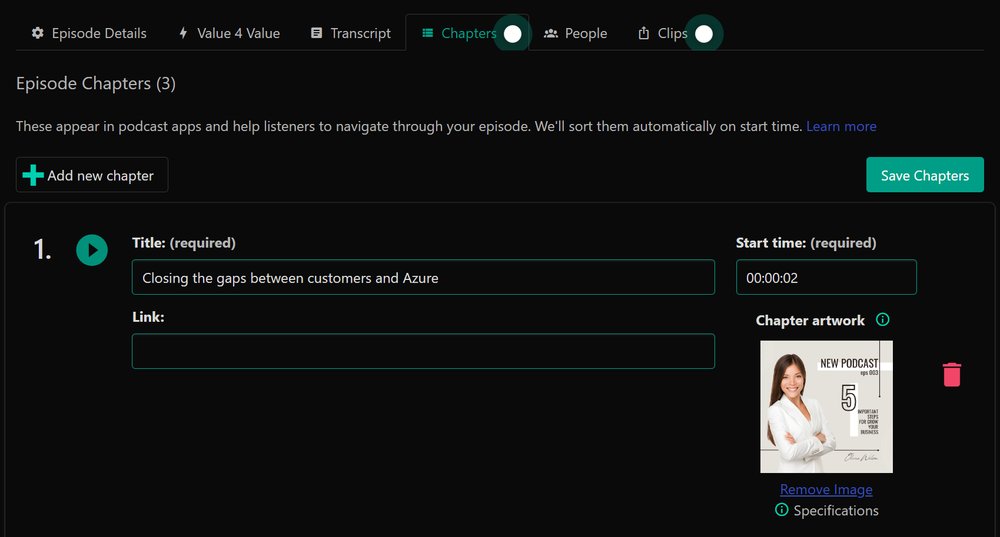
Open the episode, then the Chapters tab. From there you can:
- Rename a title so it says what the listener will hear
- Correct a start time (hours, minutes, and seconds)
- Delete a chapter the draft invented, or add one it skipped
- Attach an image and a link when a chapter should point somewhere
Images you have used before can be reused. Podhome also searches GIPHY when you want a GIF on a chapter. Click Save Chapters. Podhome regenerates the chapter JSON file, embeds the chapters in the media file, and refreshes them in dynamic text if you use that.
The Audio Helper is the visual version of the same edit. It sits on the transcript, so you can place a marker where the sentence actually changes. Both paths write the same chapter list.
Or hand the edit to Claude
If Claude is connected to Podhome, the same pass is a message. Setup is in Manage your podcast with Claude and the MCP docs. A typical follow-up, after Podhome AI has finished, looks like this:
“Show me the generated chapters. Rename chapter 3 to 'Listener questions' and remove the last one.”
You can also skip the dashboard and dictate the list: “Add chapters to my latest episode: Introduction 0:00, Main topic 2:30, Listener questions 18:45, Wrap-up 25:00.” Claude asks for confirmation before it changes the episode, depending on your Claude settings. Read that confirmation.
A five-minute pass
- Run Podhome AI with chapters on, or ask Claude to run it.
- Read every title. Rename the vague ones. Delete duplicates.
- Fix any timestamp that starts mid-sentence. The Audio Helper is the fastest way to hear the boundary.
- Add a link or an image only where it helps. Most chapters need a clear title and a time.
- Save. The JSON file linked from your RSS feed, the copy embedded in the audio, and dynamic text in the show notes all update from that save.
Modern apps read the JSON file in the feed. Some still read chapters in the show notes or inside the audio file. Podhome publishes the JSON and can include the list in show notes through dynamic text, and it embeds the chapters in the file when you save. You maintain one list.
New to Podhome? Start the 30-day trial of the same plan, upload an episode, and run the pass on that file.