
Connect Claude in 2 minutes
Connect Claude to the Podhome account you already have. Then ask it to create an episode, add chapters, or check downloads. No API key, and nothing extra to buy.
A shorter overview is on the AI assistants page. A longer walkthrough, with prompts you can copy, is Manage your podcast with Claude.
Claude: ready now
Open Claude, connect Podhome, and approve the sign-in. The steps are just below.
ChatGPT: coming soon
This page will update when the plugin is live. There is nothing to install in ChatGPT today.
Connect Claude
This works in claude.ai and in Claude Desktop. You sign in with Podhome once. Claude can then use the shows that account can already open.
Open Claude and go to Settings, then Connectors.
Search for Podhome, or open the Podhome listing in the Claude directory, and click Connect.
Sign in with your Podhome account and click Approve. Approve only a connection you started yourself.
Start a new chat. A connector does not join a conversation that was already open. Ask Claude to list your shows.
“Show me my podcasts.”
If you have more than one show, name the one you mean. Claude will ask when it is not sure. You stay in control: before Claude changes anything, it shows what it is about to do, and you click Allow or Decline.
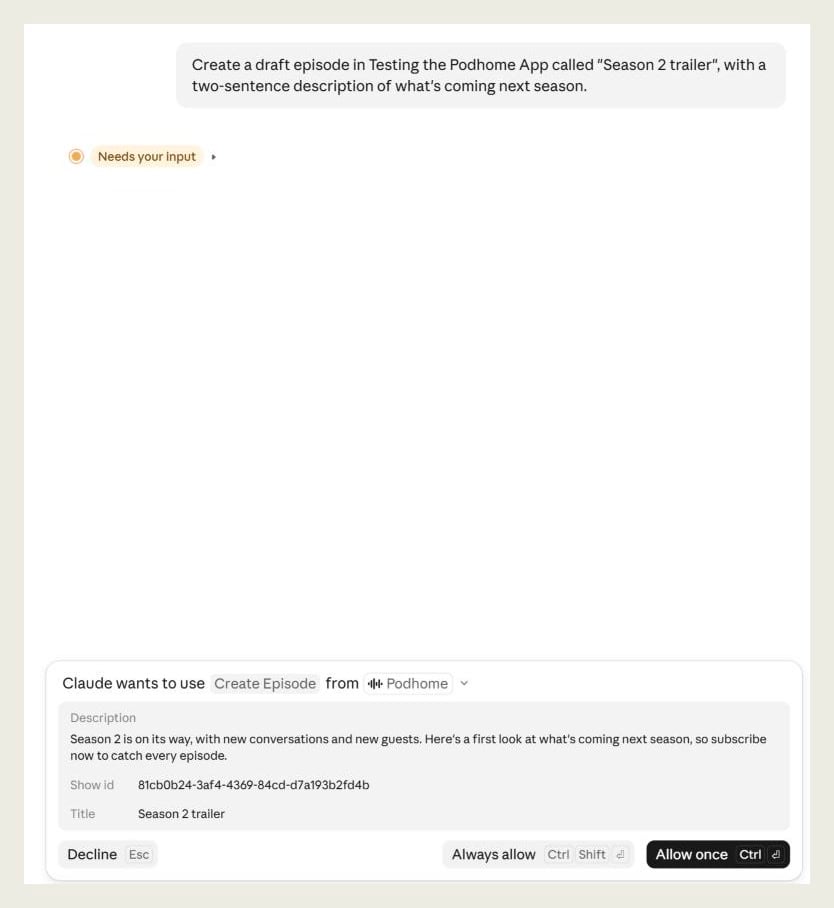
Connected apps are listed in the Podhome app under Account > User Settings > Connected AI apps. You can revoke one there at any time.
ChatGPT: coming soon
There is no ChatGPT plugin to install today, and ChatGPT does not connect to Podhome yet. The Claude steps above are the ones that work now. When the plugin is public, this section becomes the connect steps, next to Claude.
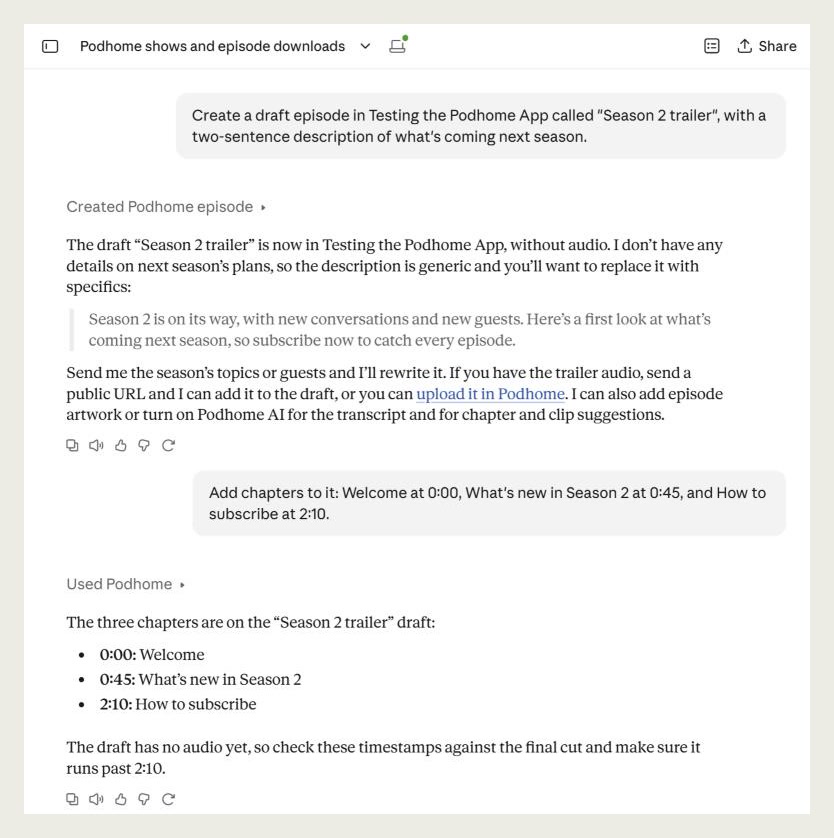
Here is what it looks like in our own testing:
A test run of Podhome in ChatGPT: connect, list episodes, create a draft, add a chapter, and check downloads by country. No sound.
What you can ask it to do
Once Claude is connected, you can ask for the everyday podcast work in a normal sentence.
| You want to | Ask for |
|---|---|
| Episodes | Create, edit, schedule, or publish an episode. Upload audio from a link, or replace the audio on an episode you already have. Uploading a file from your computer works in Claude Desktop and Claude Code, which can reach your files. |
| Live episodes | Go live or end a live episode you set up in Podhome. This tells podcast apps right away, so Claude asks you to confirm first. Learn more |
| Chapters | Add, rename, or remove chapters, including the timestamps. |
| Guests and hosts | Add a person to an episode, or take them off it. |
| Clips | Cut a short clip from an episode so you can share the moment. |
| Transcripts | Get the transcript as plain text, or as captions (SRT or VTT). |
| Downloads | Check download counts, listeners, and how they break down by app, country, device, or episode. |
| Podhome AI | Run Podhome AI on an episode that has audio, to make a transcript, chapters, clips, show notes, and title ideas. It replaces chapters or details you already have, so Claude asks which parts to run first. |
| The show itself | Look up your shows, update the description, or change artwork. Any image works: if it isn't square, Podhome crops it to a 1500×1500 square for you. |
| Artwork made for you | Ask for show or episode artwork. You get simple designs with your title right away, or designs made by Podhome AI (3 tries a day for a show, 3 per episode). Claude shows you the options and only uses the one you pick. More about artwork. |
| A video version | Attach a video of the same episode, either by uploading it or by linking to a file you already host. |
Example prompts
Copy one of these into a new Claude chat after Podhome is connected. Swap in your own show, titles, and times. The screenshots on this page come from these prompts on our test show.
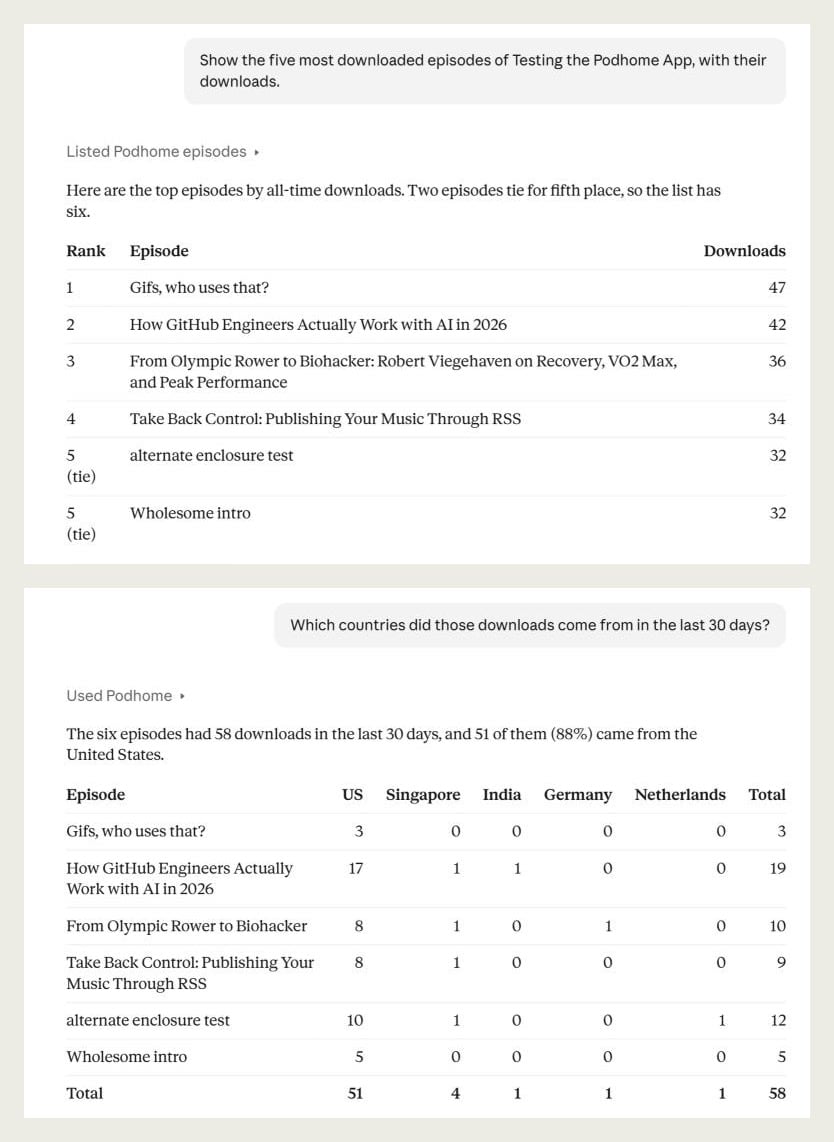
“Show the five most downloaded episodes of my show, with their downloads.”
“Which countries did those downloads come from in the last 30 days?”
“Create a draft episode called Season 2 trailer, with a two-sentence description of what’s coming next season.”
“Add chapters to it: Welcome at 0:00, What’s new in Season 2 at 0:45, and How to subscribe at 2:10.”
“Add Sarah as a guest on my latest episode.”
“Get the transcript of my most recent episode.”
“Schedule my draft episode for next Monday at 9:00.”
“Run Podhome AI on my latest episode and draft chapters and a transcript.”
“Make some artwork options for my latest episode, and use the one I pick.”
Questions people ask
Does this cost extra?
No. Connecting Claude is included in the one Podhome plan: $15.99 a month or $185 a year. There is no free tier to graduate from, and no higher plan that unlocks assistants. Podhome does not bill you for the chat. If you pay for Claude, that bill is with Anthropic.
Optional Audio Enhancement, if you turn it on, is still $0.03 per minute after the trial. Leaving it off keeps the invoice at the subscription.
What can it see, and what stays private?
Claude sees the shows your Podhome user can already open. It can work with episodes, chapters, clips, people, transcripts, show details, and download numbers. It can see whether your subscription is active. It cannot open billing, change your subscription, or see shows you have not been given access to.
You approve the connection, and you can revoke it. Podhome does not hand the assistant your payment details. How Podhome handles personal data is in the privacy policy.
Which shows does it use?
Every show that user can open, including shows a teammate invited you to. If the account has several shows, say the show’s name, or ask Claude to list them first.
Claude does not use a show API key. A key is only for scripts, and each key covers one show. That path is in For developers below.
How do I disconnect?
In the Podhome app, open Account > User Settings > Connected AI apps and revoke the app. You can also disconnect Podhome in Claude’s connector settings. Revoking it in Podhome ends access even if Claude still lists the connector.
If something looks wrong
Podhome is not in the connector list. Search for Podhome under Settings, then Connectors. Or open the Claude directory listing and click Connect. Then start a new chat.
Claude says it cannot see your shows. The connector joins new chats only. Start a new conversation after you approve the connection.
It asks you to sign in again. Sign in with the Podhome account that owns the show, and click Approve. You stay signed in as long as Claude uses Podhome at least once every 90 days. If you revoked the app, connect it again.
It changed the wrong show. Say the show’s name. Ask it to list your shows when you have more than one.
A change did not stick. Read the confirmation before a publish or a delete. If you dismissed it, ask Claude to try that step again.
You want it to stop. Revoke the app under Connected AI apps, or disconnect Podhome in Claude.
Still stuck? Email support@podhome.fm. Zapier and the API are covered in Automation.
For developers
Everyday use is the Claude connection above. This section is for people building a client, a script, or an agent. The Model Context Protocol (MCP) is the open standard that connection uses. You do not need it to follow the steps at the top of this page.
The remote endpoint is
https://serve.podhome.fm/api/mcp.
The same actions exist on the Integration API.
The server can manage shows, episodes, and their metadata. It cannot change account settings or billing.
Podhome is listed in the Official MCP Registry
as fm.podhome/podhome.
OAuth Sign-in for assistants
Claude Desktop, claude.ai, and Claude Code sign in with OAuth 2.1 and PKCE. Podhome issues an access token that lasts 1 hour and a refresh token that lasts 90 days. The client refreshes the session in the background. Refresh tokens are rotated on each use, and tokens are signed with RSA-256. Dynamic client registration is enabled for MCP clients that need it.
Claude Code, from a terminal:
Then run /mcp in Claude Code, pick podhome, and choose Authenticate. A browser opens so you can sign in and approve. Later sessions reuse that sign-in. A walkthrough of an agent on the API is Agentic podcast automation with Claude Code. How this server is built is Building a production MCP server in .NET.
X-API-KEY Scripts only
A script that can set HTTP headers can call the same endpoint without a browser sign-in.
Send the show API key in the X-API-KEY header:
Each show has its own key, under Settings > Integration in that show’s dashboard. Regenerating the key revokes clients that were using it. The key covers that one show. Keep it in the header. It is not a chat message, and MCP tools do not take an API key argument. Claude Desktop, claude.ai, and Claude Code use the sign-in above, not this header.